Setting up an alternative authenticator app
The Microsoft Authenticator does not necessarily have to be used to set up an additional login factor. However, you will lose the option to confirm authentication requests via push notification.
This guide describes how to set up an alternative Authenticator app.
Open the page https://www.office.com and follow the steps below. Alternatively, you can call up the administration of the authentication methods directly via https://www.aka.ms/mysecurityinfo or https://mysignins.microsoft.com/security-info and skip steps 2-4
Open the website https://www.microsoft365.com/ in your browser and log in with your primary MHH e-mail address and password.
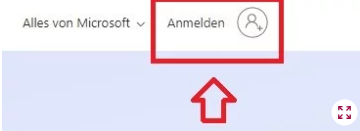
Once you have successfully registered, click on the round logo with your initials or your picture, if you have already added one, in the top right-hand corner again
Now click on "Show account".
Select "Security information" in the left-hand menu .
You can speed up the previous steps by calling up the URL https://www.aka.ms/mysecurityinfo or https://mysignins.microsoft.com/security-info
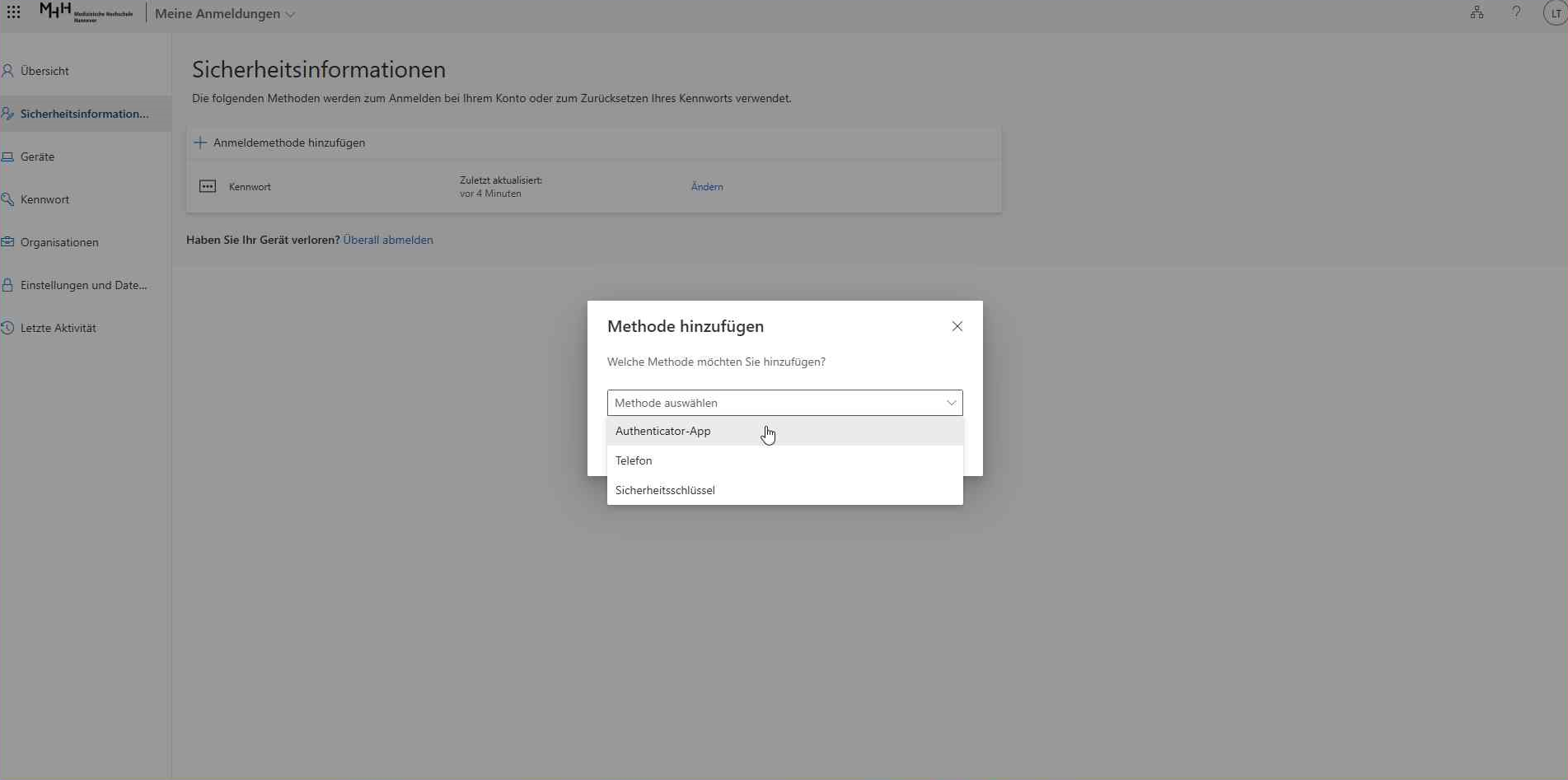
Click on "+ Add login method".
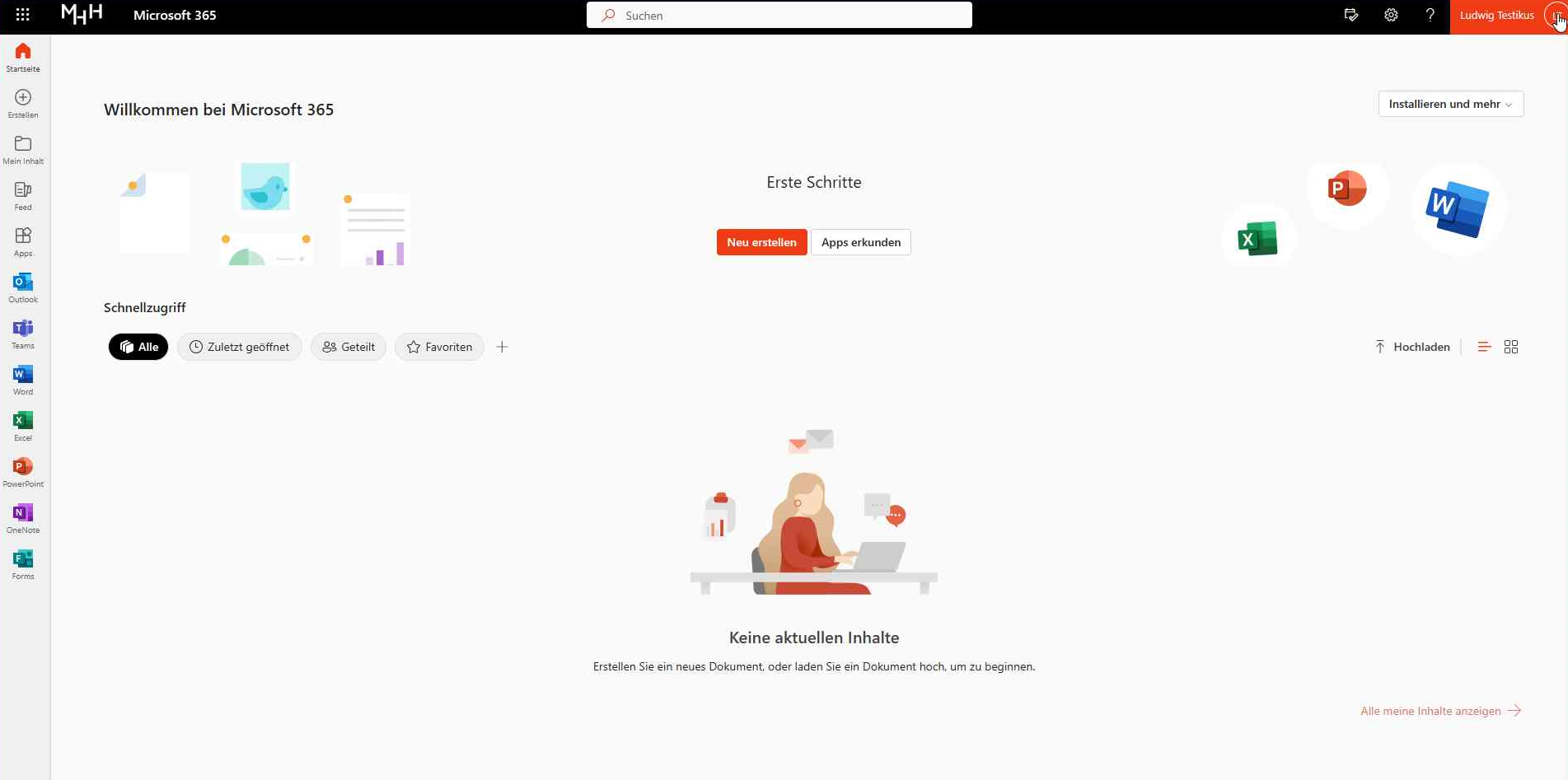
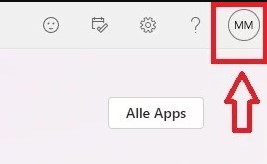
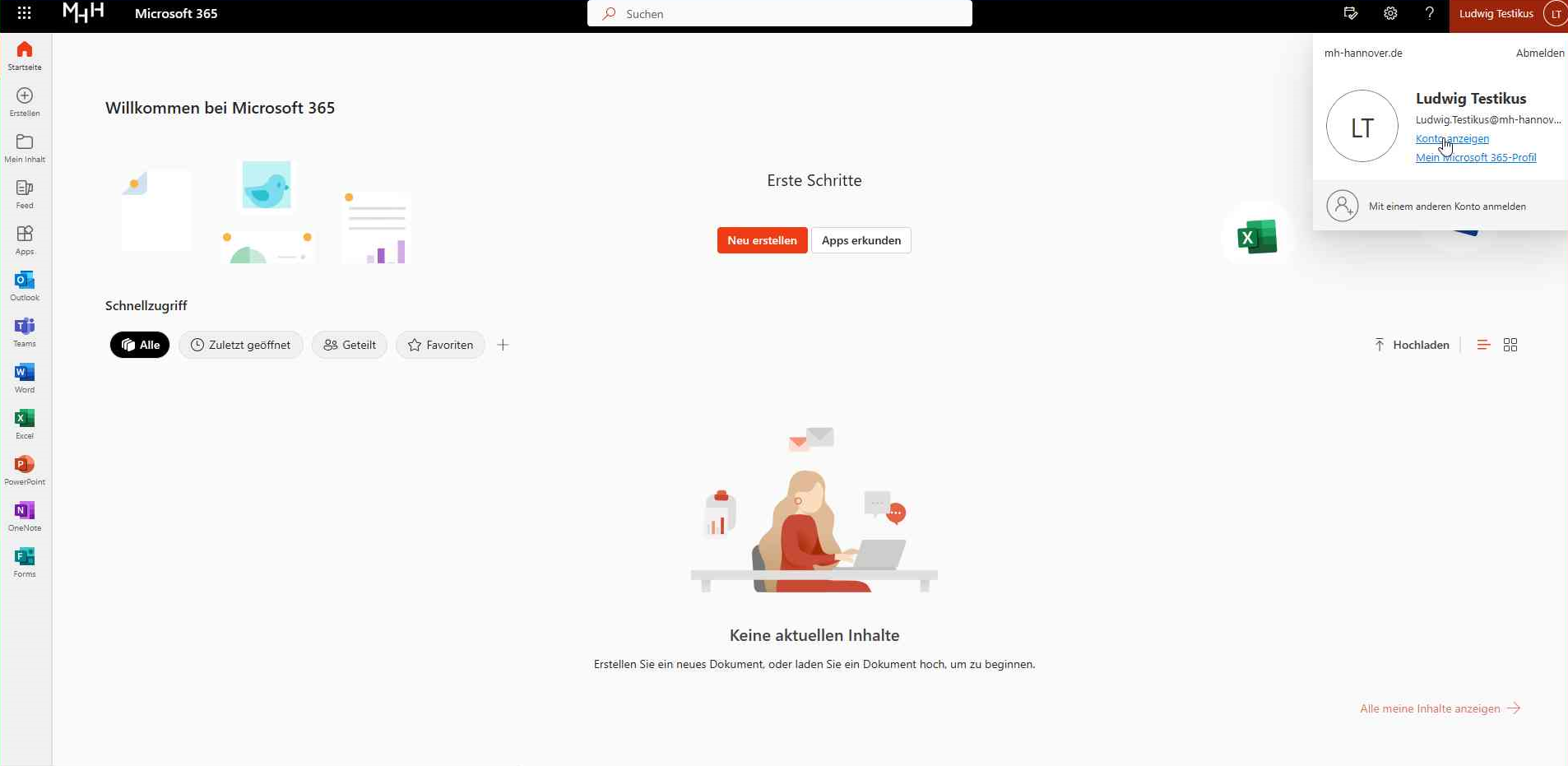
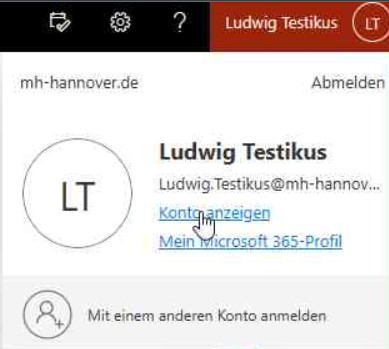
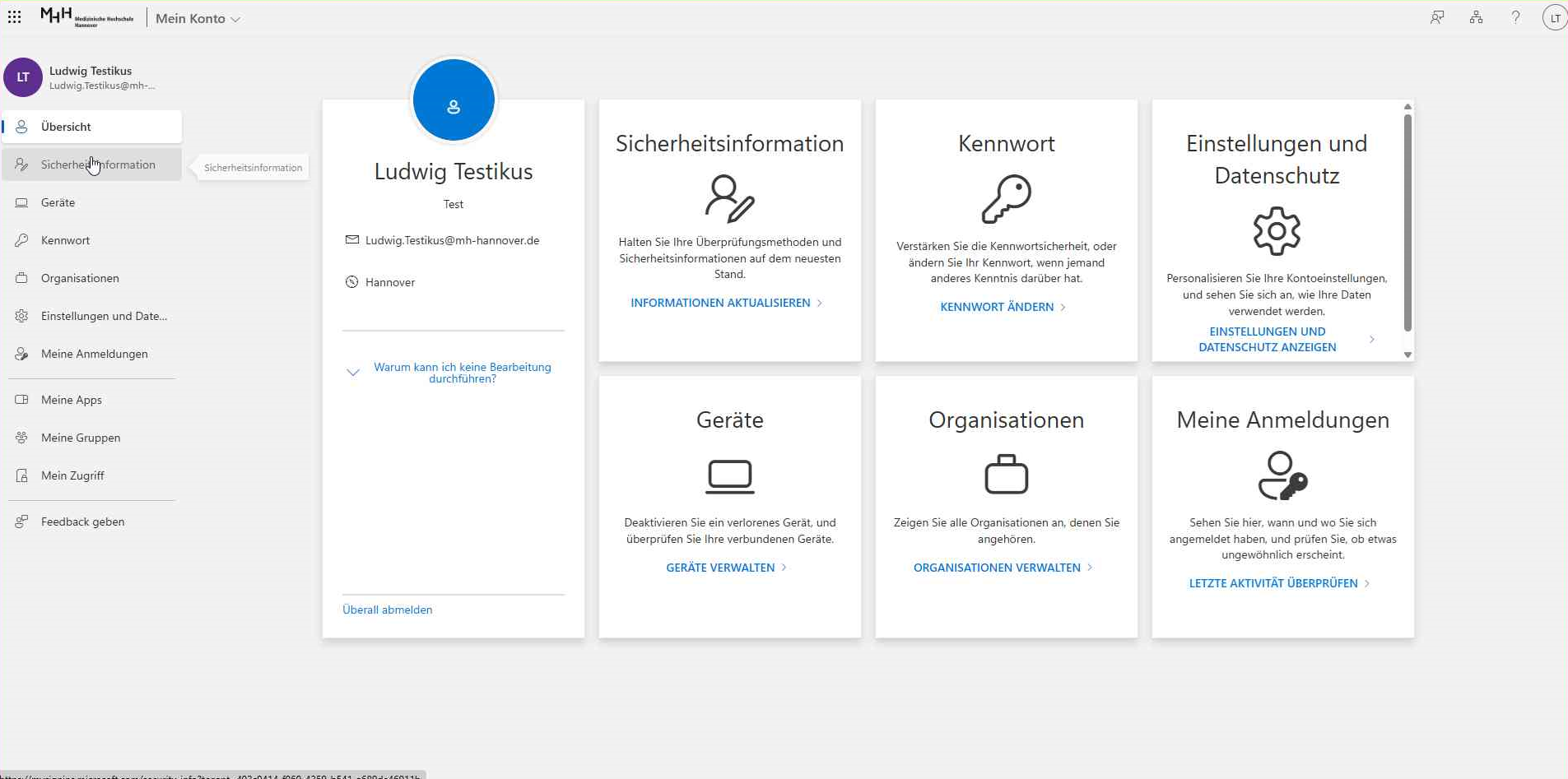
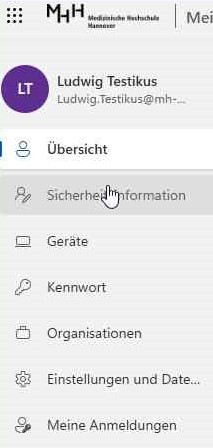
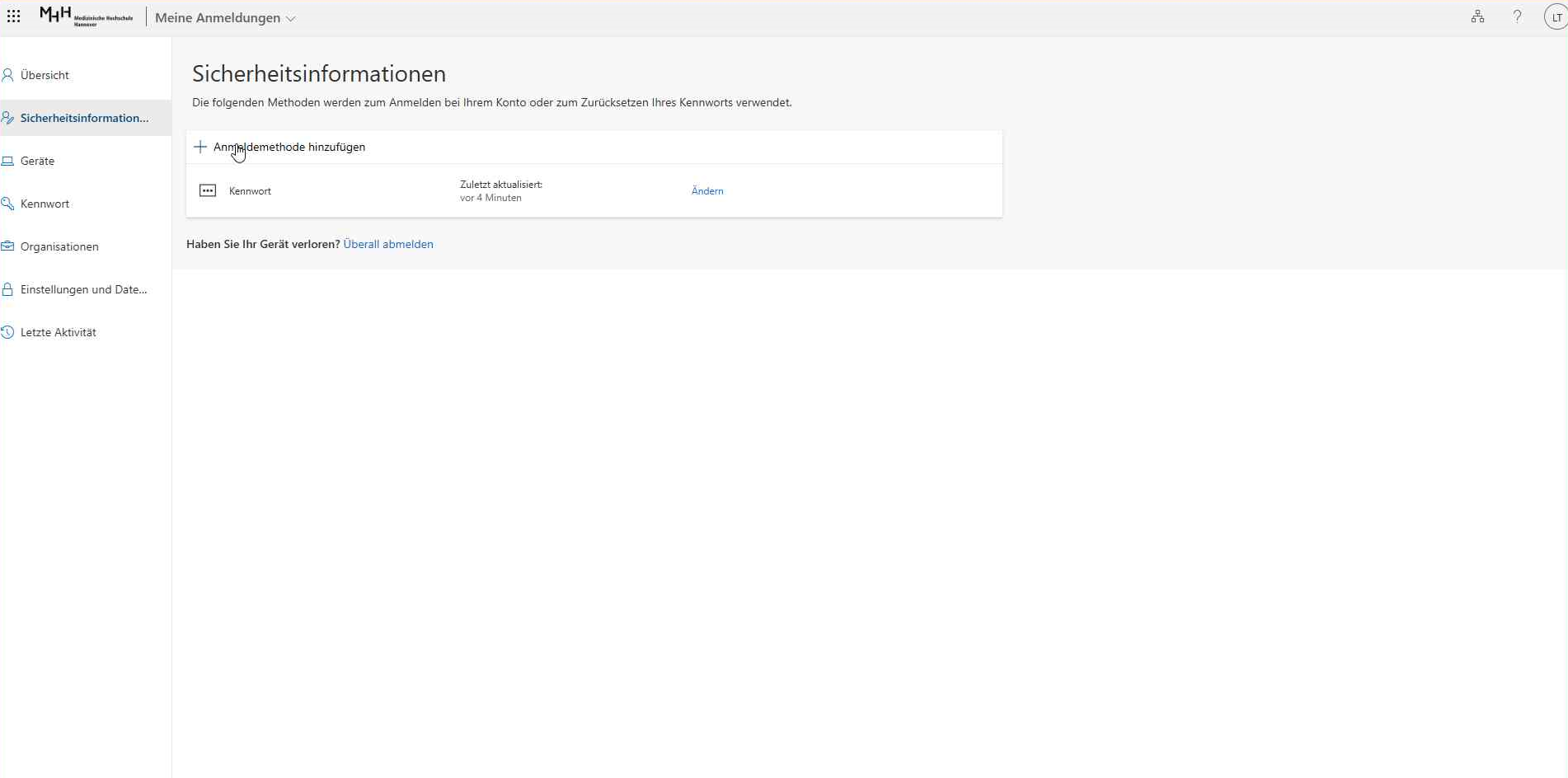
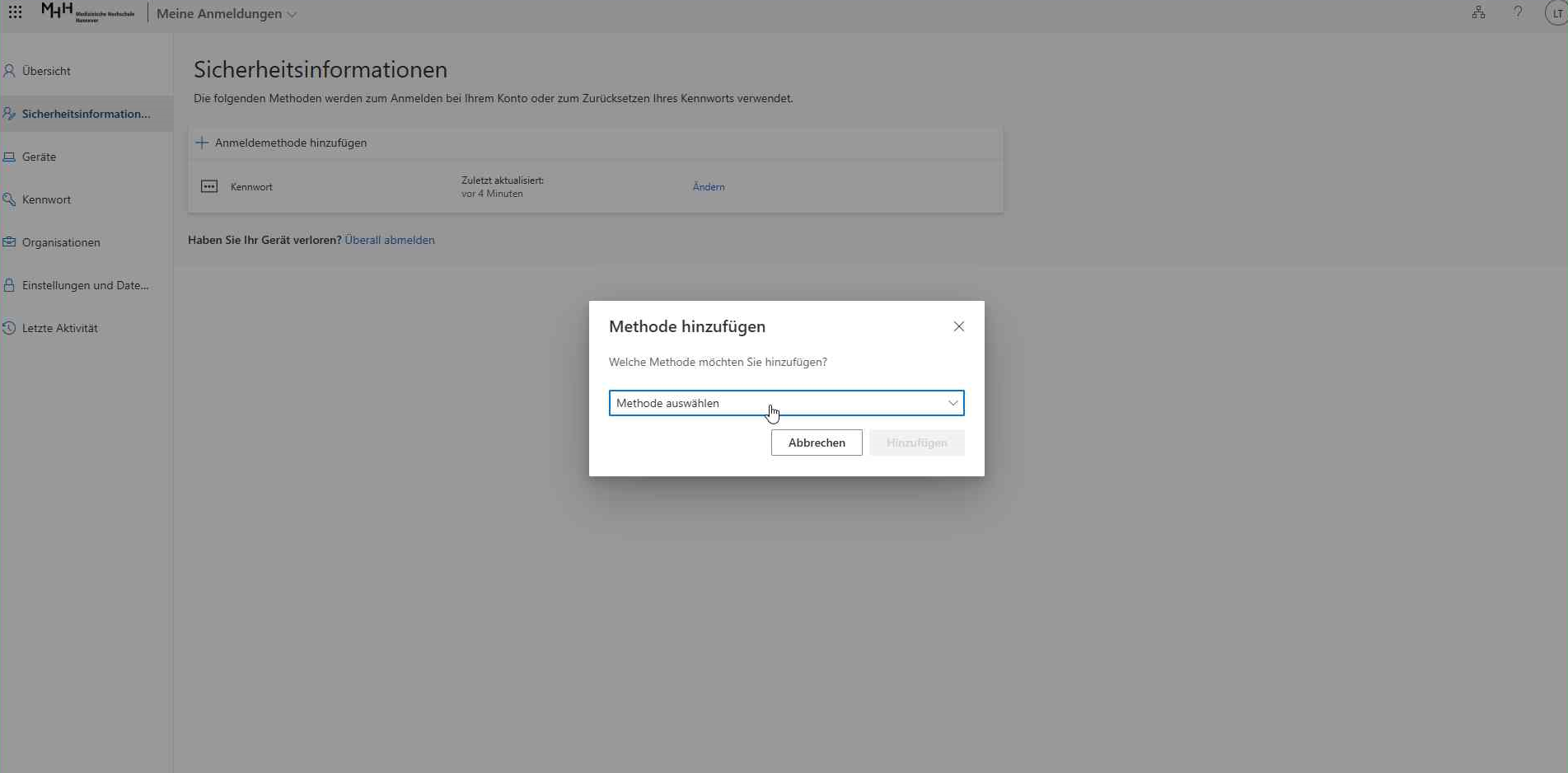
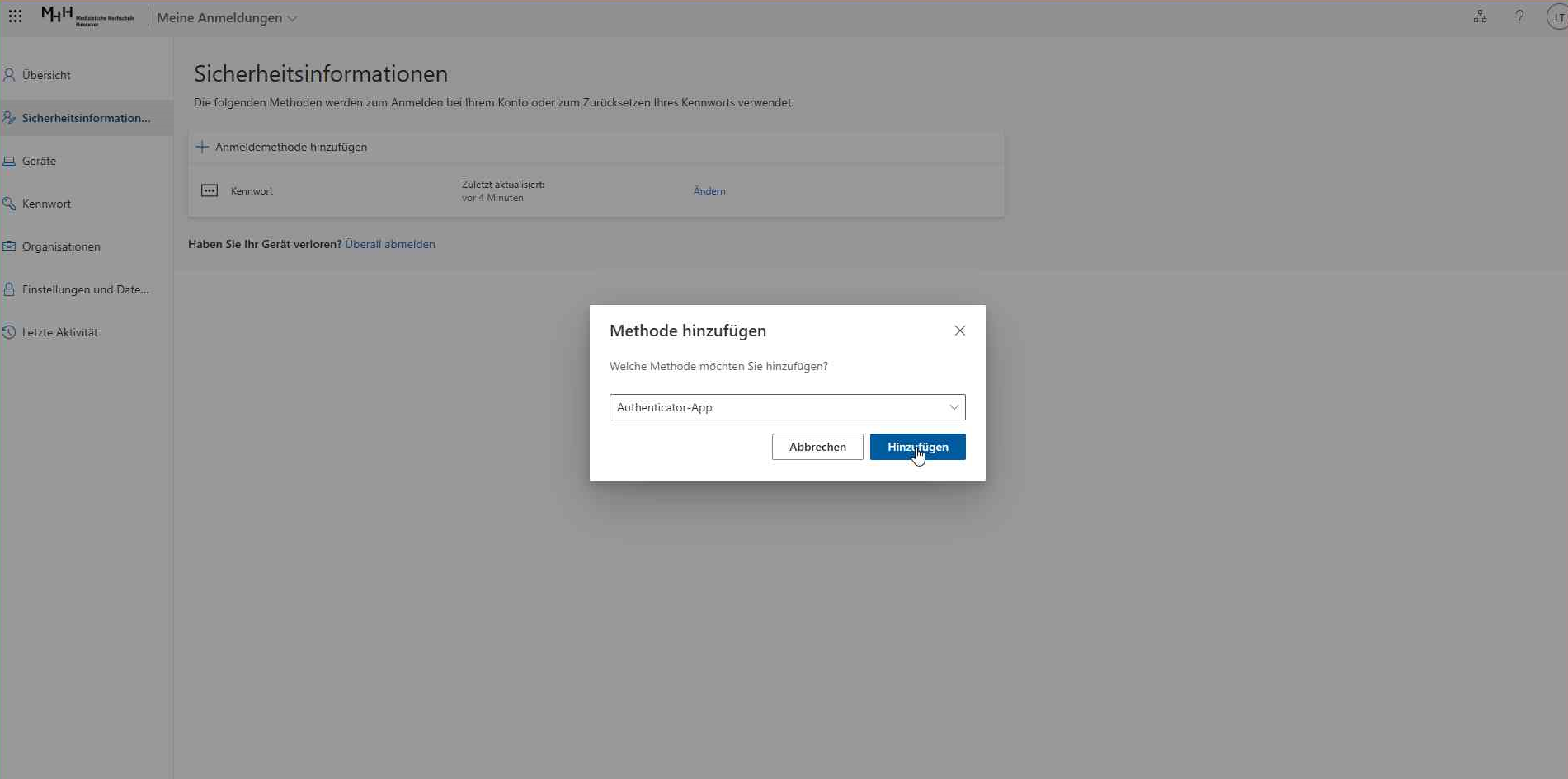
Select "Authenticator app" in the following window.
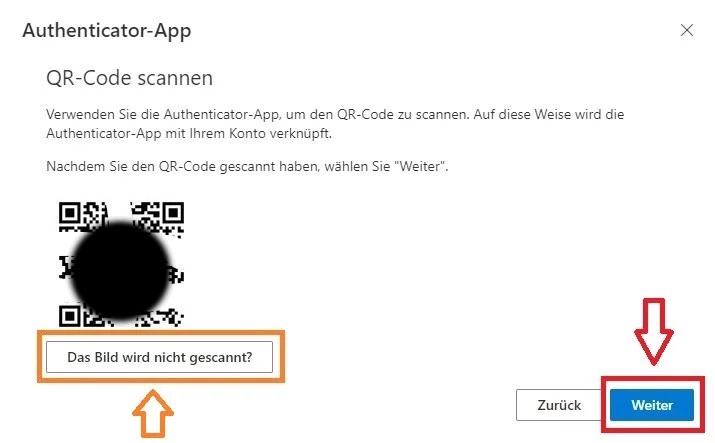
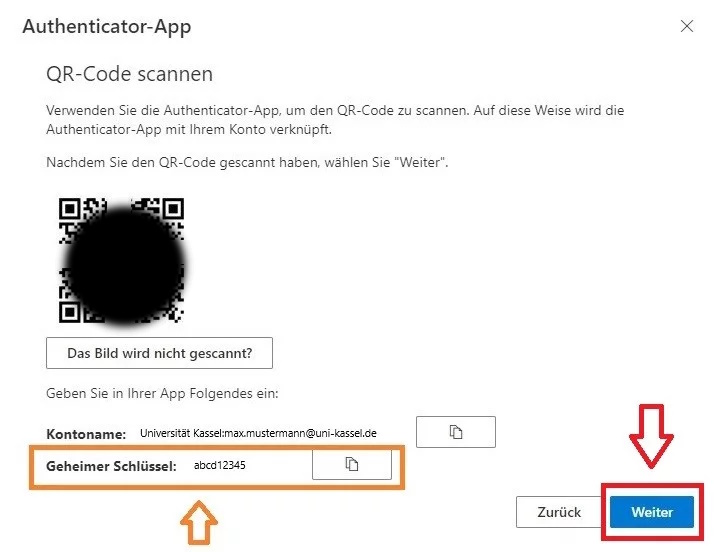
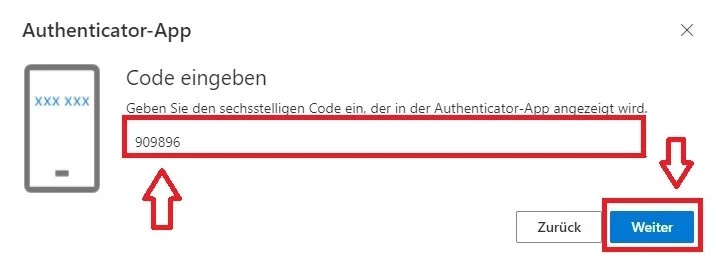
You can then add further login methods (see images 1-3).
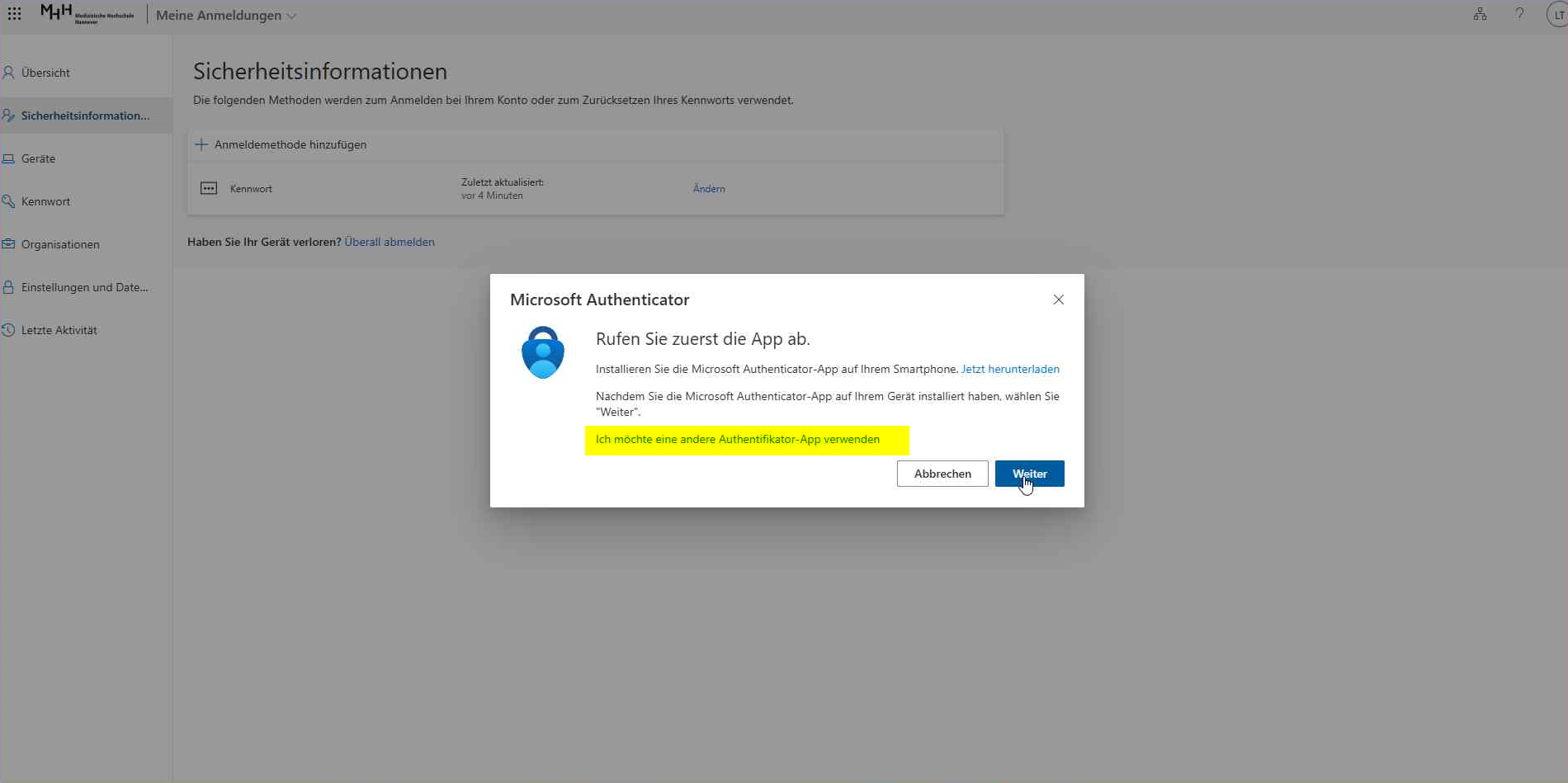
Download the alternative authenticator app (e.g. the authenticator from Google, FreeOTP, Authy or Bitwarden) to your smartphone. If you have already done this, please click on "Next".
Click on "I want to use a different authenticator app" .
If you would like to use the Microsoft Authenticator, please follow the instructions on the page underSet up MFA with Microsoft Authenticator App (from step 4).
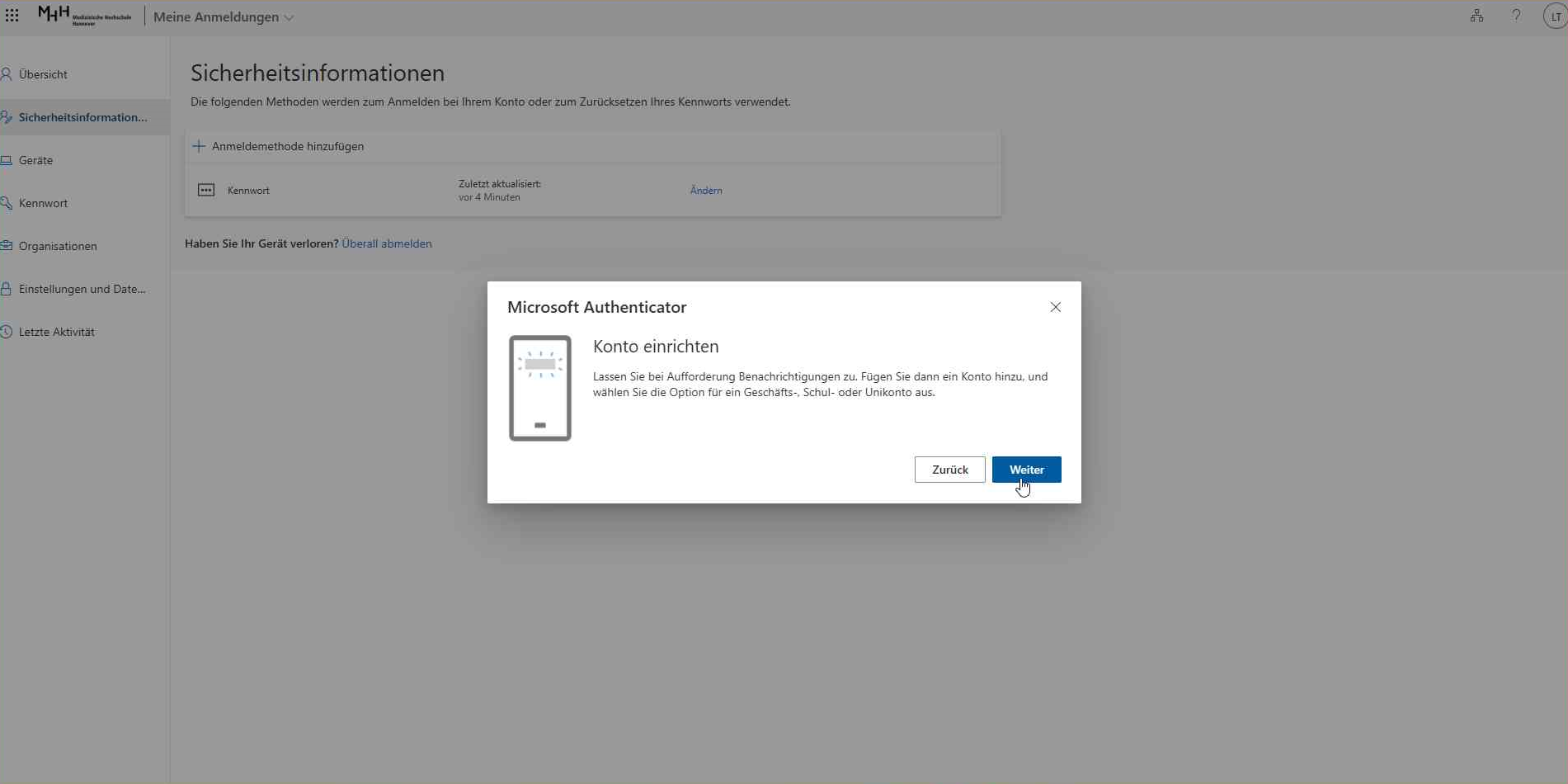
Open the Authenticator app
Scan the QR code with your Authenticator app and then click on "Next". If you are using Bitwarden on your desktop, for example, you can click on "The image is not scanned?" (highlighted in orange) to display your secret key.
If you have not scanned the QR code, please copy your secret key (highlighted in orange) and paste it into your Authenticator application and then click on "Next".
Enter the six-digit numerical code from your Authenticator application and then click on "Next".
Finally, you should see the "Authenticator app" login method you just added listed.